
Last Updated: January 16, 2026
Still can’t find the refund report on Amazon Seller Central? With so many tabs, menus, and payment views, it’s easy to miss important data when everything looks buried.
Refund requests are part of selling on Amazon because the platform puts buyers first. Customers have multiple ways to request refunds, which makes shopping easy and keeps buyer trust high.
That same setup can create real problems for sellers when refunds are misused or not tracked closely. Missed reimbursements, unreturned items, and partial refunds can quietly cut into profit if no one is watching.
Our Amazon agency will explain how to find the refund report on Amazon Seller Central and track every refund effectively in this guide. We also show how to use this data to recover lost revenue, reduce fees, and protect your profits.
Table of Contents
Turn Refund Data Into Recovered Revenue
We help sellers analyze refund reports and take action to recover lost money and reduce future losses.
What Is the Refund Report on Amazon Seller Central
The refund report on Amazon Seller Central is a record of all transactions where money was returned to a customer, either by you or by Amazon. With studies showing that 30% of online shoppers request a refund, this report is crucial for tracking these transactions and understanding why they happen.
These reports help sellers track financial impact and identify patterns in customer returns or damaged items. For FBA sellers, specific reports also show the condition of returned items and whether Amazon reimbursed them for lost or damaged inventory.
By reviewing refund reports, sellers can spot issues like unsellable inventory, incorrect reimbursements, or repeated customer complaints. Amazon provides these reports through the Payments Report for general refunds and the FBA Customer Returns Report for fulfillment center returns, giving sellers visibility into both financial and inventory data.
How to Find the Refund Report on Amazon Seller Central
Finding the refund report on Amazon Seller Central is easy to do, but many sellers still struggle without a proper guide. By following a clear step-by-step process, you can pull accurate refund data, track reimbursements, and protect your profit.
Step 1: Log in and Access the Payments Dashboard
Log in to Amazon Seller Central. Navigate to the main menu (three horizontal lines in the top left corner), select Reports, then click Payments.
Pro tip: Use the search bar at the top and type Payments Dashboard to jump there directly.
Step 2: Switch to Transaction View
On the Payments page, you’ll likely land on Statement View, which shows your balance summary. Click the Transaction View tab to see every individual transaction, including sales, fees, and refunds.
Step 3: Filter for Refunds
Find the Filter view by: dropdown menu, select Refund, and click Update. This shows all refunds issued, both by Amazon and by you, for the selected period.
Step 4: Select Your Date Range
Choose the time period you want to review, either by Amazon’s statement period, the past number of days, or a custom date range. Using a custom date range is recommended to make sure you don’t miss the 60-day window for SAFE-T claims.
Step 5: Download the Refund Report
Click Download to get the report as a text or CSV file. Open Excel or Google Sheets and import the file to organize the data into columns for easy sorting by Order ID, SKU, or refund reason.
Step 6: Check All Your Refunds
For FBA sellers:
- Go to Reports > Fulfillment > FBA Customer Returns.
- Select your date range and click Generate Report.
- Review returned units, their condition (sellable or unsellable), and any reimbursements issued.
- Unsellable items may require a removal order or a reimbursement request if Amazon is at fault.
For FBM sellers:
- Refunds are handled differently because you manage the inventory.
- After a customer requests a return, Amazon gives 4 calendar days to process the refund.
- Use the Guided Refund Workflow (GRW) linked in the reports to document item condition.
- Missing this window triggers an Automated Refund, which can prevent you from filing a SAFE-T claim.
Seen a New Seller Central Update? Let Us Know!
Amazon Seller Central constantly updates its interface. If you spot a change we missed, let us know using the form below!
Not Sure If Amazon Owes You Money?
We review your refund reports and handle reimbursement claims to make sure nothing slips through the cracks.
How to Maximize Refund Reports to Recover Lost Revenue
Although some sellers think a refund report just shows what money left their account, that’s far from the full picture. When used strategically, this report can uncover hidden losses, reveal product issues, and even recover reimbursements you might not know you’re owed.
Tip 1: Perform a 45-Day Refund Audit
Sometimes, customers are refunded before the item is fully processed or returned, and Amazon may owe you a reimbursement. By reviewing your Refund Report for transactions older than 45 days, you can identify refunds where the item’s status is unclear or not received.
Filing manual reimbursement claims for these orders can recover “lost” revenue that many sellers overlook. Regular audits ensure you’re not leaving money on the table.
Tip 2: Monitor High Return Rate Fees
Amazon charges a Returns Processing Fee for products exceeding category-specific return rate thresholds. Use your Refund Report to track SKUs approaching these limits.
Check customer return reasons for patterns such as “Defective” or “Not as Described”, and update listings, images, or product descriptions as needed. Reducing return rates even slightly helps protect your margins and prevent unnecessary fees.
Tip 3: Stay Ahead of Refund Timelines
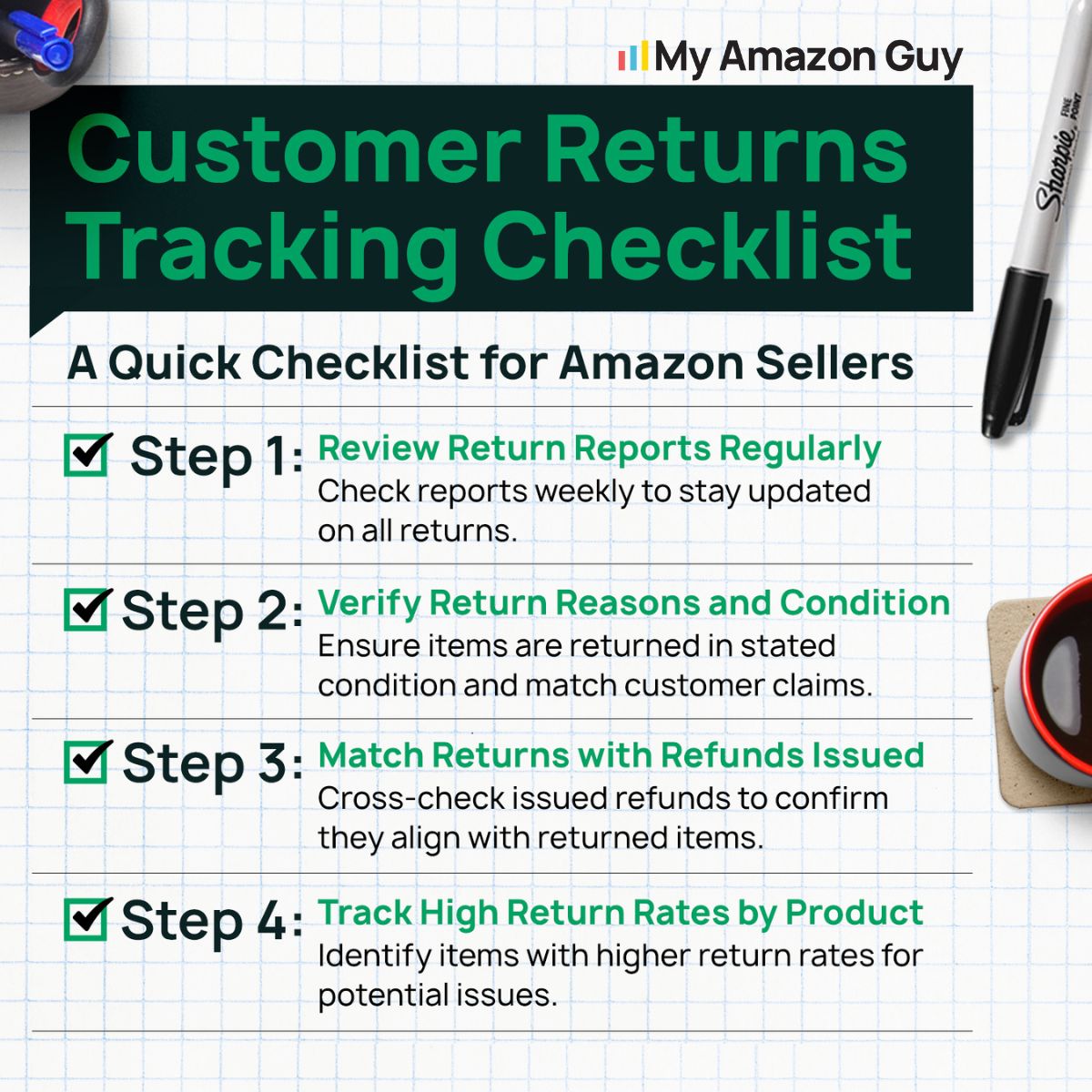
Refunds have required processing windows, and missing them can trigger automated refunds that impact your account. Monitor your Refund Report regularly to ensure all refunds are processed in time.
Document item conditions and reasons for returns as needed to protect your eligibility for claims. Staying proactive reduces errors and potential losses from late or automated refunds.
Tip 4: Use Returnless Refunds for Low-Value Items
For low-priced products, the cost to return the item can exceed the product value. Identify these items in your Refund Report and enroll them in returnless or partial refund programs when applicable.
This allows the customer to keep the item while minimizing your financial loss. Over time, this strategy can significantly reduce return shipping and processing costs.
Tip 5: Audit Customer Concessions
Occasionally, Amazon issues partial refunds or concessions for minor issues, which may appear in your report under “Other” or “Adjustment”. Sort your Refund Report to identify these transactions and verify if reimbursement is owed.
If the concession was issued for reasons that were Amazon’s responsibility, you can request repayment. Auditing these consistently can recover small amounts that add up to hundreds in extra revenue.
Tip 6: Trend-Mapping to Spot Profit Leaks
Use your Refund Report to map refund trends over time and spot patterns in spikes after holidays or high-volume sales. Compare refund rates to your category averages to see if issues are arising.
If sales remain steady but refunds increase, this may indicate product, listing, or packaging problems. Addressing these early prevents high return fees and protects your account health.
FAQs About the Refund Report on Amazon Seller Central
What is the maximum date range I can use when pulling a refund report on Amazon Seller Central?
Amazon allows custom date ranges for refund reports, but it’s best to keep it within 60 days to avoid missing the SAFE-T claim window. You can also view data by statement period or a past number of days for broader tracking.
How do I download the refund report from Amazon Seller Central?
Go to Reports > Payments > Transaction View, select “Refund” from the filter dropdown, choose your date range, and click Download. The report will download as a CSV or text file that you can open in Excel or Google Sheets.
Can the refund report on Amazon Seller Central help me recover money for refunds already issued?
Yes, by reviewing your Refund Report, you can identify refunds where reimbursements may be owed for lost or damaged inventory. Using this data, you can file manual claims to recover funds you might otherwise miss.
Master Your Amazon Refund Report to Protect Profits
It’s natural to receive customer refund requests because this is just part of selling on Amazon and e-commerce in general. For sellers, the key to staying on top of losses is using the refund report on Amazon Seller Central to track every refund efficiently.
This report can help sellers determine which products have the highest return rates, identify potential inventory issues, and spot reimbursements owed by Amazon. By regularly reviewing and analyzing the refund report, sellers can recover lost revenue, reduce unnecessary fees, and make smarter business decisions.
Are you struggling to keep up with refunds and recover missed revenue? Reach out to our full-service Amazon agency and let our experts guide you through optimizing your refund processes and maximizing your profits.
Stop Missing Refunds You’re Owed
Our Amazon experts can audit your refund reports and identify reimbursements you may have missed.