Are you trying to figure out how to close a seller account on Amazon? Sellers reach this point for many reasons, and the process matters more than most people realize because even small mistakes when closing a seller account on Amazon can cost you time, money, and future selling opportunities.
Some sellers step away because the numbers don’t add up, while others pause operations or shift their brand elsewhere. Whether the closure is temporary or permanent, doing it wrong can create problems long after the account is gone.
Closing an Amazon seller account is not just clicking a button and walking away. Loose ends like open orders, FBA inventory, account balances, and performance flags can come back to haunt you if they are ignored.
In this guide, our Amazon agency explains how to close a seller account on Amazon safely and correctly. You will learn the key reasons sellers close accounts, what to prepare before closing, and the step-by-step process to avoid costly mistakes.
Table of Contents
Thinking About Quitting Amazon?
Before you shut it down, let our team review your account and show you what can still be fixed.
Common Reasons for Closing a Seller Account on Amazon
Around 90% of Amazon sellers quit within their first six months because selling on the platform is harder and more expensive than most expect. Because of this, many sellers eventually look for a way to close their seller account on Amazon instead of continuing to operate at a loss.
Here are the other reasons why sellers close their Amazon seller account:
- Low sales and shrinking profit margins
- Rising Amazon fees, including FBA, storage, and referral fees
- High advertising costs to stay competitive
- Intense price competition and constant undercutting
- Ongoing account health issues or performance warnings
- Policy violations, IP complaints, or selling restricted products
- Burnout from managing inventory, ads, and compliance
- Moving the business off Amazon to Shopify or other marketplaces
How to Close a Seller Account on Amazon
Closing a seller account on Amazon is straightforward as long as you follow the correct steps. Doing it in the right order ensures your account is fully closed and avoids any delays or issues with final payouts.
Step 1: Log In to Seller Central
Sign in to the Amazon Seller account you want to close. Make sure you’re using the correct account if you manage multiple accounts.
Step 2: Go to Account Settings
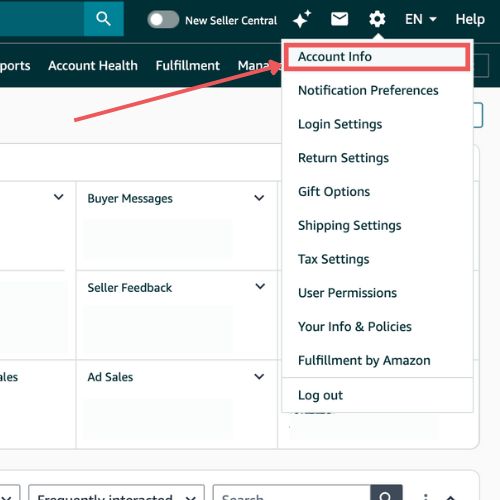
Navigate to Settings > Account Info in your Seller Central dashboard. This is where all account management options are located.
Step 3: Locate “Close Your Account”
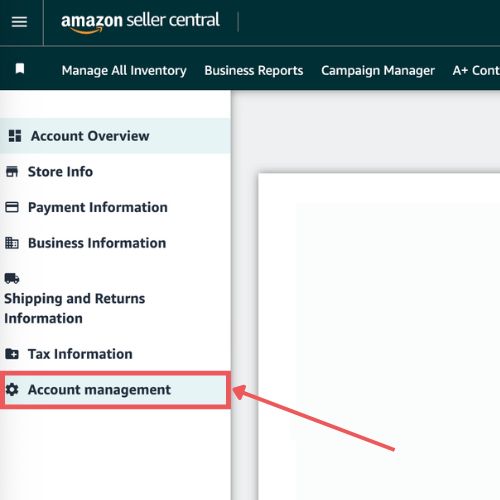
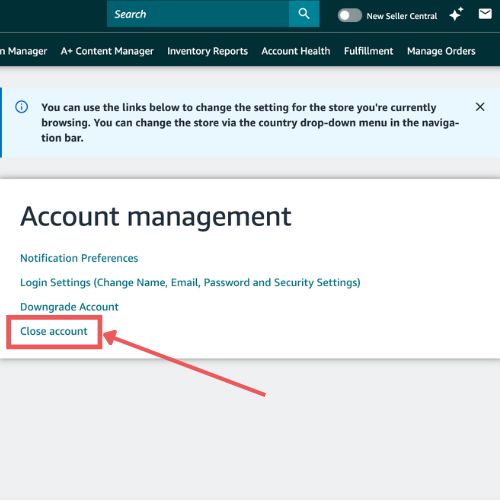
Scroll down to the Close Account section under Account Management. This is the starting point for the closure process.
Step 4: Select a Reason
Choose the reason for closing your account from the dropdown menu. Confirm that you understand the permanent consequences of closing your account.
Step 5: Submit Your Request
Click the Request Account Closure button to send your closure request to Amazon. This officially starts the review and verification process.
Step 6: Confirm Via Email
Amazon will send a confirmation link to the email address associated with your account. You must click the link within five days to verify and finalize the closure.
Step 7: Check for Confirmation
Amazon will email you once your account is successfully closed or explain why it cannot be closed yet. Attempt to log in after receiving confirmation to ensure your account is fully deactivated.
Seen a New Seller Central Update? Let Us Know!
Amazon Seller Central constantly updates its interface. If you spot a change we missed, let us know using the form below!
Don’t Close Your Seller Account Just Yet
Many sellers quit because of problems that can be corrected with the right strategy and support.
What to Do Before Closing Your Amazon Seller Account
Before sellers can close their seller account on Amazon, there are several important steps to take to avoid complications. Skipping these preparations can lead to lost funds, stranded inventory, or unresolved customer claims, so it’s critical to prepare carefully before shutting down your account.
1. Fulfill and Settle All Orders
Make sure every open order is shipped, delivered, or refunded. This ensures customers are satisfied and prevents future disputes or claims.
2. Manage Your FBA Inventory
Remove, liquidate, or dispose of all products stored in Amazon fulfillment centers. Leaving inventory behind can result in extra fees or complications with Amazon.
3. Achieve a Zero Account Balance
Pay any outstanding fees and wait for the final disbursement from Amazon. An account cannot be closed until the balance is completely settled.
4. Wait for the A-to-z Guarantee Period
Allow 90 days after your last sale to pass for any potential claims to be resolved. This prevents delays in receiving your final payouts.
5. Download All Critical Data
Save financial reports, transaction history, and inventory listings. Once the account is closed, you will no longer have access to this information.
6. Cancel Subscriptions and Services
End your Professional seller plan, FBA programs, or any third-party subscriptions. This prevents recurring charges after your account is closed.
7. Update Payment Information
Ensure your bank account and credit card details are correct. Amazon will use this information to issue your final payout.
8. Check Account Standing
Resolve any suspensions, policy violations, or open disputes. Accounts with unresolved issues cannot be fully closed and may block your ability to sell in the future.
9. Consider Alternatives
If you’re unsure about leaving permanently, consider using Vacation Mode to temporarily hide listings. This allows you to pause selling without losing your account history.
What Happens After Closing a Seller Account on Amazon
Once a seller closes their account, they lose access to Seller Central completely. This means no more order history, customer messages, returns, refunds, or A-to-z Guarantee claim management.
All active product listings are removed immediately, and any FBA inventory must be removed, or it may be destroyed. If you have a North America or Europe Unified Account, closing one account will automatically close all linked accounts across other marketplaces.
The closure process is typically permanent and irreversible. You also may face difficulty creating a new seller account in the future, as Amazon can link new accounts to previous closed accounts, potentially causing automatic suspensions.
FAQs About Closing a Seller Account on Amazon
Is closing a seller account the same as deleting it?
Yes, closing your Amazon seller account permanently deletes it from Seller Central. Once closed, you lose access to all data, listings, and account history, and the action cannot be undone.
Can I reopen my Amazon seller account after closing it?
No, a closed account cannot be easily reopened, and Amazon may link any new accounts to your previous one. This can result in automatic suspensions or restrictions on creating a new seller account.
What happens to my FBA inventory and listings after I close the account?
All active listings are removed immediately, and any remaining FBA inventory must be removed, or it will be destroyed. Sellers should resolve this before initiating closure to avoid extra fees or lost products.
Closing Your Amazon Seller Account the Right Way
Sometimes, Amazon sellers face the tough choice of closing their seller account due to low profitability, high competition, or operational challenges. When this happens, it’s important to handle the closure properly to avoid lost funds, unresolved claims, or unnecessary fees.
Closing a seller account isn’t just clicking a button because it requires preparation, including fulfilling orders, removing inventory, settling balances, and downloading critical account data. Skipping these steps can create long-term headaches and make it difficult to move on smoothly.
Are you still on the fence about closing your Amazon seller account or just pausing operations temporarily? Reach out to our full-service Amazon agency and let us help you out!
On the Fence About Closing Your Account?
A second look at your listings, ads, and costs could change your decision entirely.